|
|
The
fastest way to color in psp6 that I found
is to make use of the draw tool again. If
you go to the draw tool options and change
the "stroked" option to "filled", you will
be able to use the draw tool, as before,
when doing the outline, only now the area
formed by the closed curve of the outline
will have the color that is selected by
the dropper tool. To select the color,
select the dropper tool and right click on
the color you want on the original pic, or
click on any color of your choosing in the
colors window. I suggest doing it on a new
layer, move this new layer below the
outline layer by going to
Layers/arrange/move down, this way you
will still see the outline while coloring.
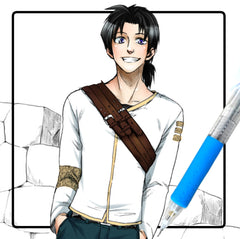
Here are various
stages of me coloring the pic according to
the original, or at least an attempt to do
so, as I was not very faithful to the
original pic.
First do the basic
colors, no shading yet.
|
|

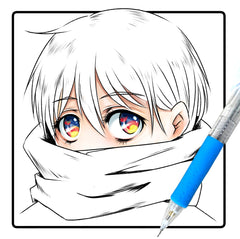
Now begin to do the
finer coloring details, such as the
effects and glows. I will describe how I
did these below. Also, as you color, do so
on new layers, since later we will need to
smear (or make less transparent) the
colors; this way the smudge won't involve
colors you don't wont to be effected. Once
you are satisfied with how it's done,
merge that layer and the rest of the pic,
by going to layers/merge all, or keep it
as separate layers if you think you will
change it later, but remember that too
many layers can eat up a lot of memory. My
pic had 10 layers and something like 12+
megs at the final stage; not a very good
practice.
|
|

I left the pic alone
for a while (few weeks) and when came back
to it again, I added some more effects and
tried to make it a bit more faithful to
the original pic, the final version is at
the beginning of this tutorial, still
unfinished
|
|

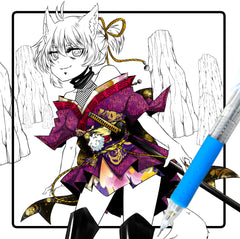
If you are feeling bold, add some effects
to the pic, something like this maybe
(again, I will explain how I did these in
the next section)
|
|

Or like this
(actually same as the one above only with
some filtering and manual
retouching)
|
On
to the Next Section!
RETURN
TO MAIN
|