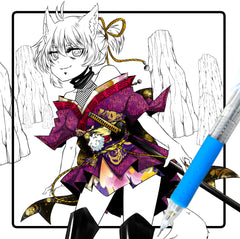
|

I did not have
access to a scanner at the time
I drew this, so I decided to do the
entire pic in PSP6. To start off, I placed
the original pic on the screen, and,
referencing it, drew (I did not trace it
on purpose, I wanted to see how it would
turn out) the lined version on a newly
opened image (go to File/New to open the
new images). Then go to Layers/New raster
layer to open a new layer for you to draw
on. Here, I used the draw tool (click on
the "draw" tool and a new "Draw options"
window opens up) with the option "Type"
set to "Point to Point line", option
"Style" set to "Stroked" (as opposed to
"Filled"), and "Antialias" turned on (to
smooth out the lines, they look jagged
without it). The tool works as follows:
you click on a point on the screen, at
that point there appears a "node". If you
now left click and grab it, you can move
it anywhere on the screen. When you click
at the second point, you will have a node
there and a straight line connecting the
two nodes. However, if you click and drag
the mouse instead of just clicking, you
will see an arrow in the direction of
motion of the mouse, and if you click and
drag to another point on the screen, then
a second node that appears will have an
arrow as well. You will then have two more
parameters to control besides the location
of the nodes (for you math people out
there, that makes it a cubic spline, or an
interpolating polynomial of degree three),
namely, the slopes at the nodes. You vary
the slope by grabbing ether end of the
arrow at the nodes and moving it as you
see fit. To get out of this node drawing
mode you right click and select the "End
node editing" option. (You will notice, if
you right click to exit the drawing mode,
you will see a lot of node editing
options) Ok, so now we can draw straight
lines and curves, and so drawing an
outline of Cell is just an exercise in
using the draw tool. Here, you can see the
end result of me drawing the outline of
Cell using the draw tool. (looks kind of
goofy if you ask me).
|