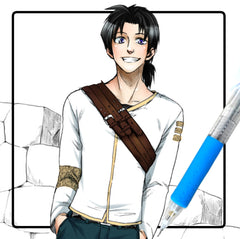
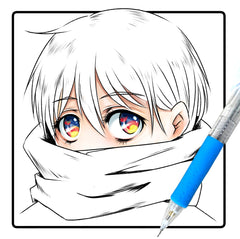
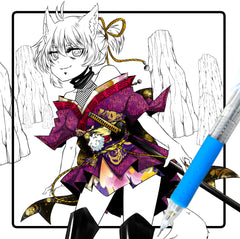
|
|
 

Create a new layer
between the Background layer and the
Outline layer. This layer will be for the
skin (well, you can color whatever you
like first, but I usually start off with
the skin or hair). :) Most people use the
magic wand tool to select an area to
paint, but I have found the magic wand
tool to be insufficient, and not very
precise. Plus, you end up having several
white areas around the lines that need to
be filled in. Instead, try using the
polygonal lasso tool to select the areas
that you want to color in. It takes a
little longer, but works out best in the
long run, in my opinion. You don't have to
worry about holes in the outline or those
annoying white areas around the lines.
What you want to do is trace along the
outlines of the region you are wanting to
color. This can be difficult on larger
complex regions, though, since once you
start the selection you can't stop until
you finish it. If this becomes a problem,
the pen tool will work just as well for
this task. Sometimes complicated regions
like detailed hair can be a pain to
select, but trust me, just be patient and
you will be glad you took the extra time
instead of using the magic wand tool.
:)
|
|

Once you have all of
the skin (or whatever other part you are
working on) selected, choose a color and
use the paint bucket to fill it in. If you
have problems choosing colors, look around
on the internet for pictures of characters
with nice skin tones, and copy them over
using hte eyedropper tool. If the color is
too faded because you took it from a bad
scan, just adjust it until it looks the
way you want it. Also, before you add the
color, consider what kind of lighting will
be in the picture. Will it be in normal
daylight, or will it be dark? What kind of
mood do you want your picture to have? The
colors you choose will affect the overall
feel of the picture, so take this into
account before you begin to add
color.
|
|

Next, select the
other regions of the picture and fill in
the colors. Make sure to put each color on
a separate layer, or at least make sure
you do not have any two colors touching
one another. This will make it much easier
to shade later on. ^_^ Speaking of which,
do not begin to shade until you have
filled in the colors for all the major
areas. This is done so you can make sure
the colors match up well. It's annoying if
you shade in the hair first, but then
decide that you want the alter the color
drastically because of the colors you
choose for the clothing or
background.
I wanted this
picture to have soft light, so I chose
light, slightly faded colors. Remember
that your color selection can greatly
affect the look and feel of your picture,
so take some time when filling in all the
colors. I usually spend some time
adjusting and readjusting the colors of
the skin, hair and clothing until I'm
pleased with the combination.
|
|

Now that all the
main colors are filled in, we can go back
and start shading. I usually start with
the skin and hair, just because I think
they're more fun. :) Make sure that you
check the preserve transparency box at the
top of the Layers floating menu! This is
very important; it allows you to paint
over the area that you already painted on
without going over the lines. It will make
shading much easier. Select a darker
version of the base color of the layer you
are working with. If you have trouble
selecting a nice color, then look at other
pictures for reference. I almost always
use another anime picture to help me with
the shading, especially with more
complicated light patterns. I use a
graphics tablet when shading, but a lot of
people have to use a mouse instead. To get
that smooth cel look with a mouse, you can
use the freehand pen tool to define the
shadows, color them freehand (which I
often prefer, even though its messy and
takes longer..), or use the polygonal
lasso tool to select the areas you want to
shade. There are a variety of ways you can
go about adding the shading; what method
you choose is up to you. Just remember to
experiment, and to be patient, because it
can take a while to get the shadows smooth
and shaped the way you want
them.
|
|

It's usually a good
idea to add several layers of shading per
base color, especially on areas like the
skin and hair. In addition to adding
another layer of shadows, I adjusted the
colors of the skin a little to make them
less dull. To do this, use the eyedropper
tool to select the color you want to
change, then go to Replace Color on the
top Image Menu. You can then change that
color to anything you like without messing
up the shading you have already filled in.
^_^
|
|

Once you have
finished shading the face, move onto
another area. I chose to do the hair next,
because as I mentioned before, I like
coloring hair. :) The hair was colored
pretty much the same way as the face; I
picked a darker shade of the base color,
and filled in the shadows. Make sure that
you keep a consistent light pattern. For
example, if the light is coming from the
left on the face, make sure it looks like
its coming from the left on the rest of
the picture. Pay close attention to areas
where the shadows fall, and make sure to
shade them accordingly. Again, it never
hurts to use another picture as
reference.
|
|

If you like, add a
second layer of shadows to the hair to
give it added depth. Feel free to add
highlights, too. I didn't add them in this
particular picture, because I didn't feel
that his hair needed it, but if you were
to add highlights, I recommend putting it
on a separate layer above the hair. Making
the light areas of the highlights overlap
the darker shadows is a great way to make
the hair (or anything) look really shiny,
and its easier to make them overlap if
they are on separate layers. That way, if
you mess up, you don't ruin the existing
shading. ;)
|
On
to the Next Section!
RETURN
TO MAIN
|